Moving liquids lets you build custom pools, channels and waterfalls. Prepare the destination first and use the liquid type required by the habitat.
Unlock the ability to carry liquids
- After completing the main story request in Bleak Beach, continue the requests from Piplup until it asks for a waterfall.
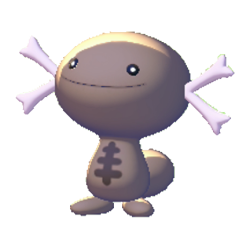
- Prepare the marshy tall-grass habitat near the muddy water to meet Paldean Wooper.
- Give Paldean Wooper the three tomatoes it requests. If the nearby crops are dry, open the blocked water channel and let them grow before harvesting.
Collect and place a source
Stand near the liquid, hold Y and press ZR to collect it. Walk to the intended position and press A to release it. Pressing B swallows the stored liquid instead of placing it, so avoid that input while carrying your supply.
Prepare the destination before releasing liquid: dig a basin, leave a channel and block unwanted openings. Placing the source above a drop makes water flow downwards. For habitats that specifically require a waterfall, allow a drop of at least five blocks and check the habitat recognition.
Choose the correct liquid
The ability works with ordinary water, sea water, muddy water, hot-spring water and magma. Collect the liquid the habitat actually requires; ordinary water does not become hot-spring water because you decorate the basin. Carrying liquid is useful within a region, but do not plan to transport a mouthful through a region transition.
Remove a misplaced flow
Find the original source tile and collect it again with Y and ZR. Removing only water farther downstream will not stop an upstream source from refilling the channel. Let the flow settle after each change and test a small contained pool before flooding a large build.