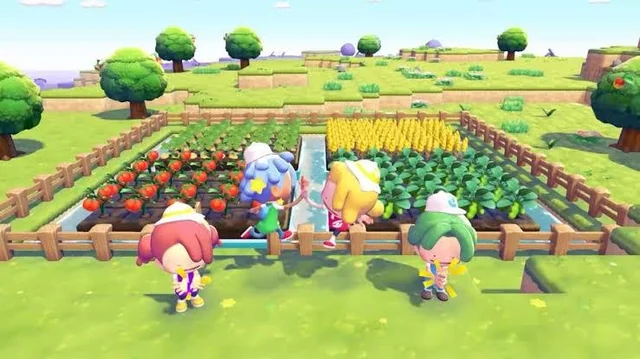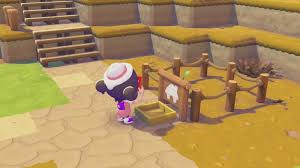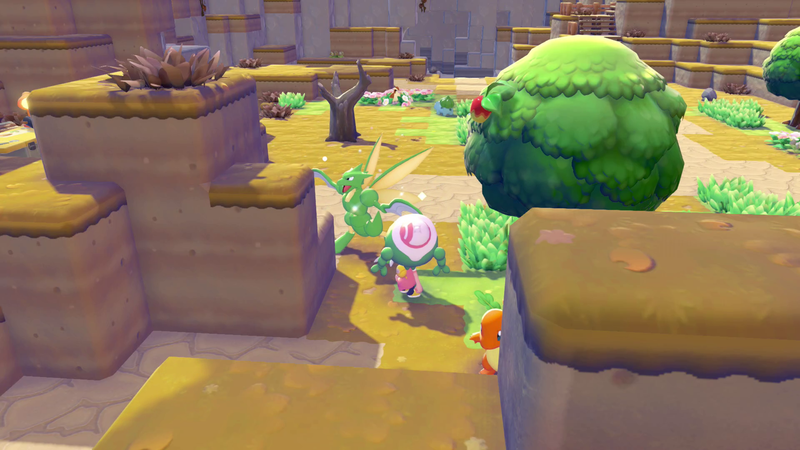
In Pokémon Pokopia, certain mechanics require you to wait real time before they complete—whether it's finishing a building, growing crops, or having certain Pokémon appear. If you'd rather not sit through these wait times, you can speed things up by changing the system clock on your Nintendo Switch 2.
How Time Works in Pokémon Pokopia
The game uses your console's real-world time. Day and night in Pokopia match your local time, and the in-game day resets at 5:00 AM (regardless of your region). At that moment:
- Constructions complete
- Crops finish growing
- New Pokémon appear
By advancing the system clock, you can trigger these updates without waiting. This works for short waits (around 15 minutes) or full-day cycles.
Steps to Change the Time on Nintendo Switch 2
- Open Settings from the HOME screen of your console.
- Scroll down until you find the Console section.
- Look for the section called Date and Time.
- Turn off the option that syncs the console time with your timezone (e.g., "Synchronize Clock via Internet").
- Set the time manually to whatever you want—for example, advance it by several hours or a full day.
- Return to Pokémon Pokopia. The game will use the new time, and constructions, crops, and Pokémon spawns will update accordingly.
Note: This method is commonly used in games like Animal Crossing: New Horizons, where content depends on the current day and time of year.
Summary
Changing the Nintendo Switch 2 system clock lets you skip waiting for buildings, crops, and Pokémon spawns. Disable automatic time sync, set the time manually, and the game will treat the new time as real—allowing you to progress without long waits.